Quasimorph Mod Manager Guide
Install Steam Workshop Map Packs safely, control load order, and recover when mods break a story contract
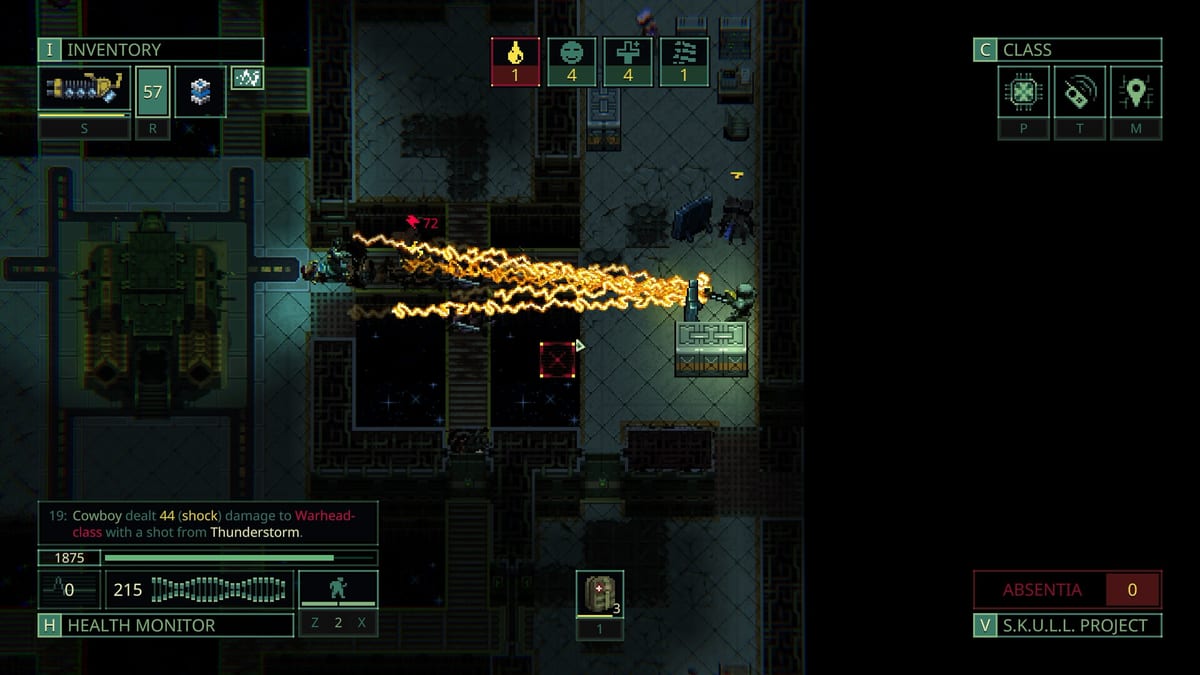
Quasimorph version 1.0 (July 31, 2026) ships an in-game Mod Manager, a Map Editor for authors, and full Steam Workshop support for community Map Packs. This page covers the player side: subscribing to Workshop content, enabling packs, reading collision warnings, and keeping saves stable. If you want to author rooms or wire folder structures for procedural injection, use the Map Editor Guide instead — that page owns UID assignment, NEW PRESET workflow, and REBUILD PACK after manual file drops.
The Mod Manager lives in the main menu alongside the editor. Think of it as mission control for what geometry actually loads when you accept a contract. Magnum Scriptum injects custom rooms only when packs follow Core Map Pack folder rules; the manager is where you see when two packs fight over the same category.
Mod Manager versus Map Editor
| Task | Tool |
|---|---|
| Subscribe or install Workshop packs | Steam client + Mod Manager |
| Enable, disable, reorder packs | Mod Manager |
| View map pack collisions | Mod Manager |
| Create rooms, assign UID 10–21473 | Map Editor |
| Match Core folder names for injection | Map Editor (authoring) |
| Pre-mission kit audit on custom maps | Loadout Planner |
Authors publish; players curate. Never debug a soft-lock by opening the editor first — start in Mod Manager with everything disabled.
What the Mod Manager does
After Patch 1.0 the in-game Mod Manager exposes three core controls:
- Enable / disable individual Map Packs without deleting Workshop subscriptions or local folders.
- Set load order when multiple packs touch the same procedural room categories.
- Display map pack collisions so conflicting packs surface before you launch a storyline save.
Collision display is the feature most players skip until a contract refuses to advance. Treat yellow or flagged collisions like a pre-flight warning: reorder, disable the lower-priority pack, or accept that only one pack’s rooms will win that folder slot.
Steam Workshop workflow
Typical install path for a player who does not touch raw files:
- Subscribe to a Map Pack on Steam Workshop while Quasimorph is installed.
- Launch the game and open Mod Manager from the main menu.
- Confirm the new pack appears, then disable all other community packs for the first test.
- Enable the subscribed pack alone and note any collision lines against Core or other mods.
- Run a short non-story extract — Mars farming or a low-stakes contract from Getting Started habits — before stacking packs on a Walkthrough Hub save.
Workshop handles download and updates; Mod Manager handles what is active this session. An subscribed but disabled pack does not inject rooms.
Load order and collisions explained
Map Packs claim UIDs between 10 and 21473 and organize rooms into folders that mirror Core Map Pack room categories (MilitaryOrbital-style names, and similar). Procedural missions pull from those folders; if two enabled packs redefine the same category, load order decides which preset wins unless the manager reports a hard collision.
Practical rules:
- Put total conversion or large overhauls lower unless documentation says otherwise — smaller aesthetic packs often expect to overlay, not replace.
- Keep one pack per conflicting folder when collision warnings persist after reordering.
- After an author manually adds
.mapfiles outside the editor, they must REBUILD PACK in the Map Editor; as a player, re-enable the pack only after the Workshop item updates or the author confirms a rebuild.
For map mods distributed as loose files, modmanifest.json must set RoomPresetNamespaceSlot to the same value as the Map Pack UID. Mismatched manifest slots produce silent non-injection — rooms exist on disk but never enter the mission pool. You usually see that as “vanilla-only” stations despite a enabled pack; ask the author to fix the manifest rather than raising load order endlessly.
Safety before you mod a storyline save
Modding is reversible in Mod Manager, but save corruption and soft-locks are not always reversible without a backup.
Backup saves before enabling Workshop packs on a campaign file:
%USERPROFILE%\AppData\LocalLow\Magnum Scriptum\Quasimorph\
Copy the entire folder to external storage. Steam Cloud may not capture every local branch state.
Also remember:
- Default Early Access saves are incompatible with 1.0 on the main branch. If Mars suddenly looks wrong after an update, confirm you are on a 1.0 save — Unstable Beta saves may carry forward per Patch 1.0 notes, but default EA slots are not a mod problem.
- Console commands invalidate Steam achievements on affected saves. Keep achievement hunting on clean, verified setups per the Achievements Guide.
- Disable community packs before filing bug reports on Steam discussions so Q3 hotfixes from the Roadmap are not chasing mod conflicts.
Soft-lock recovery checklist
When a story mission freezes, doors never spawn, or objectives fail to tick after installing mods:
- Disable all Map Packs in Mod Manager.
- Launch and complete a vanilla Mars extract to confirm the save still progresses.
- Re-enable one pack at a time, checking collision warnings between each enable.
- Stop at the pack that reintroduces the bug; leave it disabled and report to the author.
- Restore from backup if the save already corrupted during the bad run.
This sequence is faster than reinstalling the game and preserves your Workshop subscriptions.
Playing modded missions well
Custom geometry does not relax Quasimorph rules: clone death still wipes carried loot, resistances still demand two damage types, and Quasimorphosis sectors outside Absentia moons still end runs that ignore timers. Run the Loadout Planner before playtesting a new pack — denser floors and extra spawn markers punish under-packed kits.
For vanilla route order and story timing, stay on the Walkthrough Hub. Mods change where you fight, not whether faction rep and ending flags still matter.
Related reading
- Tools Hub — all checklist and modding tools in one place.
- Map Editor Guide — authoring rooms, UID assignment, REBUILD PACK, and folder naming.
- Patch 1.0 Release Notes — launch scope for Mod Manager, editor, and Workshop.
- Getting Started — extract loop basics before modded Mars tests.
The Mod Manager is the guardrail between Steam Workshop creativity and a stable campaign. Enable packs deliberately, read collisions, backup saves, and recover with disable-test-re-enable — not by deleting half your subscriptions in frustration.
Frequently Asked Questions
Quick answers to the most common questions.
Where is the Quasimorph Mod Manager?
Open it from the main menu in version 1.0 alongside the Map Editor. It lists installed Map Packs, toggles enable state, sets load order, and shows map pack collisions.
What is the difference between Mod Manager and Map Editor?
Mod Manager is for players: enable Workshop packs, reorder loads, and read collisions. Map Editor is for authors creating rooms, assigning UIDs 10–21473, and rebuilding packs after file changes.
How do I fix a Quasimorph mod soft-lock?
Disable all packs in Mod Manager, verify a vanilla Mars extract works, then re-enable one pack at a time while watching collision warnings until you find the conflicting mod.
Where should I backup Quasimorph saves before modding?
Copy the folder at %USERPROFILE%\AppData\LocalLow\Magnum Scriptum\Quasimorph\ before enabling Workshop packs on a storyline save.
Why is my subscribed Map Pack not appearing in missions?
The pack may be disabled in Mod Manager, collide with another pack, or have folder names or modmanifest RoomPresetNamespaceSlot values that do not match its Map Pack UID.
Do Quasimorph mods break Steam achievements?
Mods alone are not the main issue, but console commands invalidate achievement eligibility on saves. Use clean setups for achievement runs per the Achievements guide.