Quasimorph Steam Workshop Guide
Find, install, and manage community content for your Quasimorph 1.0 experience
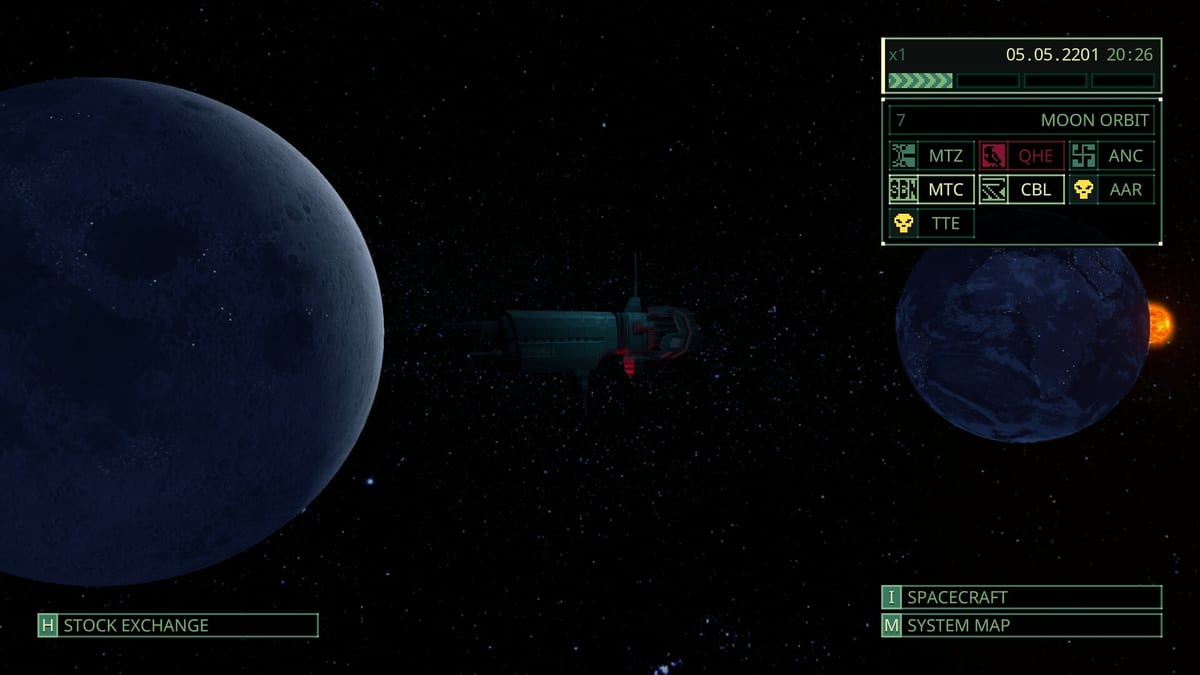
Quasimorph version 1.0 launched with full Steam Workshop support alongside the built-in Map Editor and Mod Manager. The Workshop gives players access to community-created map packs, gameplay mods, and content expansions without touching external download sites. This guide covers finding quality Workshop content, managing subscriptions, configuring load order through the in-game Mod Manager, and avoiding the save compatibility issues that Workshop changes can trigger.
What the Steam Workshop provides
The Quasimorph Workshop hosts player-created map packs, custom mission sets, gameplay tweaks, and content expansions. Unlike the built-in Map Editor which creates custom maps locally, Workshop content downloads through Steam and integrates via the in-game Mod Manager.
Workshop content types:
- Custom map packs that replace or augment procedural station layouts
- Story mission alternates that vary faction mission tables
- Gameplay balance tweaks that modify enemy stats or resource rates
- New equipment mods that add weapons, armor, and consumables
- Quality-of-life improvements like UI tweaks and inventory helpers
Finding quality Workshop content
Not all Workshop items are equal. Use these criteria when evaluating content:
Subscriber count and rating — Higher subscriber counts suggest reliability. Workshop ratings give a quick quality signal.
Recent updates — Items updated after August 2026 are more likely to work with version 1.0.3 and later. Legacy Early Access content may cause conflicts.
Description clarity — Good Workshop items list compatibility, known issues, and save compatibility notes. Avoid items with vague descriptions.
Changelog — Regular updates suggest active maintenance. Check the changelog tab for version history.
SteamDB overlap — Cross-reference with SteamDB to confirm the item matches your installed build number.
Subscribing to Workshop content
Finding the Workshop
Navigate to the Quasimorph Workshop at: https://steamcommunity.com/workshop/browse/?appid=2059170
Or access it in-game through the main menu under Community > Workshop.
Subscribing process
- Browse or search for the content you want
- Click the Subscribe button on the Workshop item page
- Steam downloads the content automatically in the background
- Launch Quasimorph — the Mod Manager detects new content on startup
- Enable the content through the in-game Mod Manager
Subscription management
Manage subscriptions through:
- Steam overlay > Community > Workshop > My Workshop
- Steam client > Library > Quasimorph > Workshop tab
Unsubscribe here to remove content. The Mod Manager shows disabled items separately from active ones.
Using the in-game Mod Manager
The Mod Manager (accessed via the in-game menu under Mods) handles load order, enabled/disabled states, and collision warnings.
Enabling content
- Open the Mod Manager from the main menu or pause screen
- Browse to the Workshop section
- Find the subscribed item you want to enable
- Toggle the enable switch
- Confirm — the Manager may warn about load order
Load order
Workshop content loads in the order shown in the Mod Manager list. Drag items to reorder when multiple mods affect the same game systems.
General load order rules:
- Map packs load before gameplay tweaks
- UI mods load after gameplay systems
- Equipment mods load early in the sequence
- Story mods load last to avoid narrative conflicts
Collision warnings
The Mod Manager displays collision warnings when two or more items modify the same asset or game value. Collisions do not always break gameplay — some collisions are intentional design choices.
When collisions occur:
- Read the warning description carefully
- Check each mod’s description for compatibility notes
- Test in a low-stakes mission before committing to a full campaign
- Disable conflicting items if gameplay breaks
Disabling content
Toggle the enable switch off in the Mod Manager. The content remains installed but inactive. Unsubscribe from Steam to remove it entirely.
Save compatibility and Workshop changes
Workshop content can affect save compatibility in ways that matter for trophy hunters and campaign continuity.
Save stability rules
Do not add or remove Workshop content mid-campaign without understanding consequences:
- Adding map packs mid-save can change station layouts and break route memory
- Removing content mid-save can corrupt faction mission tables
- Equipment mods added mid-save may not appear in existing loot tables
Safe workflow:
- Finish or backup current campaign before adding Workshop content
- Add one new item at a time
- Test in a few missions before continuing the main campaign
- Remove problematic content before continuing story progress
Achievement interactions
As noted in the Achievements Guide, console commands invalidate achievements. Workshop content that modifies game rules does not automatically invalidate achievements — but exercise caution with radical gameplay overhauls.
Popular Workshop categories
Map packs
Community map packs range from rebalanced difficulty challenges to expanded station layouts. Popular categories include:
- Nightmare difficulty packs — Increased enemy density and altered patrol routes
- Speedrun routes — Optimized station layouts for fastest completion
- Alternate factions — Replaced faction enemy tables for fresh gameplay
Equipment mods
Equipment mods add new weapons, armor sets, and consumables. Check compatibility with existing crafting recipes — some equipment mods add components that conflict with bench crafting.
Gameplay overhauls
These mods change core systems like enemy AI, resource rates, or mission generation. Test thoroughly before using in a campaign.
Content Mod Creator tool
For creators, the Content Mod Creator on the Workshop (Steam ID 3671320495) provides a tool for creating weapon and item mods without repetitive setup code. It handles:
- Folder structures and settings files
- Image importing for custom icons
- Audio importing for weapon sounds
- Configuration loading for custom stats
Supported mod types: weapons, armor, ammo, fire modes, explosions, consumables, traits, datadisks, implants, and mercenary class mods.
Troubleshooting Workshop issues
Content not appearing in Mod Manager
- Verify Steam download completed (Library > Downloads)
- Restart the game completely
- Check Mod Manager filter — some items appear only in Workshop section
- Verify the content matches your build number (1.0.3 or later)
Game crashing on startup with Workshop content
- Disable all Workshop content
- Launch successfully
- Enable items one at a time to isolate the culprit
- Report crashes to the Workshop item author with your build number
Save corruption after adding content
Unfortunately, save corruption from Workshop conflicts cannot be reversed. Always backup saves before adding new content. Saves are located in:
%USERPROFILE%\AppData\LocalLow\Magnum Scriptum\Quasimorph\
Related reading
| Focus | Page |
|---|---|
| Map Editor guide | Map Editor |
| Mod Manager reference | Mod Manager |
| Achievement rules | Achievements |
| Save backup guidance | Patch 1.0 Notes |
| Campaign routing | Walkthrough Hub |
Workshop content extends Quasimorph’s replayability. Subscribe carefully, test incrementally, and keep your campaign saves backed before experimenting.
Frequently Asked Questions
Quick answers to the most common questions.
How do I access the Quasimorph Steam Workshop?
Navigate to steamcommunity.com/workshop/browse/?appid=2059170 or access it in-game through Community > Workshop in the main menu.
How do I enable Workshop content in Quasimorph?
Subscribe on the Steam Workshop page, then open the in-game Mod Manager to enable the content. The Mod Manager handles load order and collision warnings.
Does Workshop content affect save compatibility?
Yes. Adding or removing Workshop content mid-campaign can affect station layouts, mission tables, and loot tables. Always backup saves before adding new content.
Can Workshop content invalidate achievements?
Not automatically. Unlike console commands, Workshop gameplay mods do not automatically invalidate achievements. However, use caution with radical overhauls that change core systems.
What if Workshop content crashes my game?
Disable all Workshop content, restart successfully, then enable items one at a time to find the problematic content. Report the crash to the Workshop item author with your build number.
How do I create my own Quasimorph mods?
Use the Content Mod Creator tool on Steam Workshop (ID 3671320495) which handles setup code for weapons, armor, ammo, fire modes, explosions, consumables, traits, datadisks, implants, and class mods.